
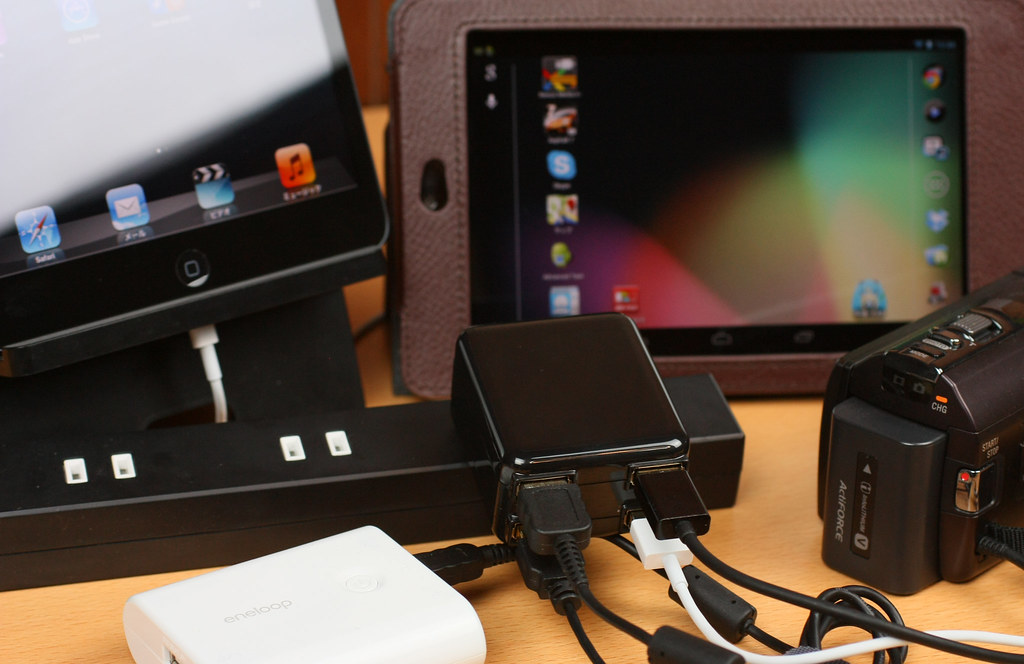
You are not alone in wondering, “Why does my iPad take so long to charge?” Many iPad users tell us that they face a sudden battery drop like from 10% to 50% in a few minutes, without any heavy use. It leaves them frustrated. However, understanding the reasons behind slow charging can save you hours and prevent unnecessary stress.
From software glitches to hardware issues, several factors can influence charging speed. Let us explain why your iPad is not holding power and what you can do about it.
Low-Wattage Chargers and Cable Issues
One of the most common causes is simply the charger or cable. To keep your device health for long:
- Use Apple-certified accessories
- Prefer a 20W or higher adapter
- Use a cable with a high current rate transfer
Using a high-wattage charger and compatible cable dramatically reduces waiting time, and it’s often the simplest fix for those looking for the answer to “Why does my iPad take so long to charge?”
How Apps and Background Activity Can Slow Charging?
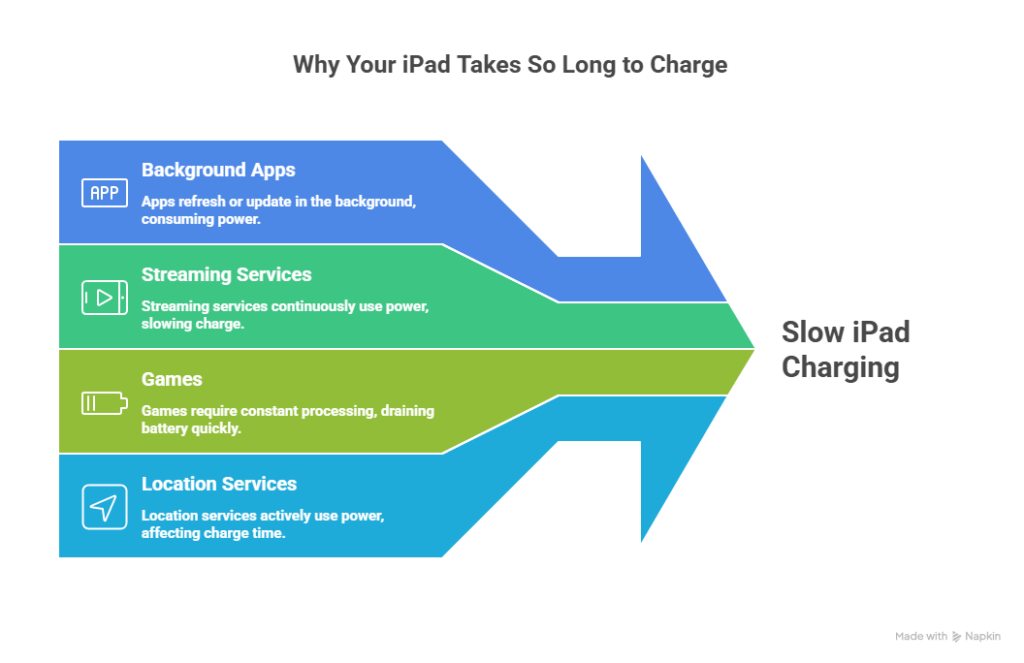
It happens many times that we consider our iPad to be in an idle state, but in reality, there are apps that keep consuming the battery even if the iPad screen is off. They are constantly refreshing or updating, which draws power faster and also leads to slow charge. This is especially true for streaming services, games, or apps that use location services.
To optimize charging speed, close unused apps from the background, pause automatic updates, and consider using iPad on Low Power Mode to reduce background activity. It creates a cleaner power flow and lets your battery fill up efficiently instead of fighting a constant drain.
Clean the Charging Port for Better Contact
If your charging port has accumulated dust, then it does not let the current pass through properly. To clean it, you can perform the following steps:
- Power off your iPad.
- Get a soft brush to remove debris from the port.
- Use compressed air to remove debris.
Strictly avoid using sharp objects because they could damage the pins and make the problem worse.
Reduce Power Usage During Charging
When you don’t close the app after using it and plug the iPad in, it charges slow because those apps keep using the power. It is the common problem that we answer when asked, “Why does my iPad take so long to charge?” So, always:
- Close apps you are not using.
- Activate Low Power Mode or Airplane Mode on charge.
- Avoid high-demand tasks while charging.
By reducing background activity, you give the battery room to fill up faster. Also, using a powerful charger makes sense because Apple itself says that with iPad Pro, it is better to use a 60W charger to charge your device up to 50% in half an hour.
Check Battery Health
If slow charging persists after applying the above-discussed methods, the issue could be your battery. Lithium-ion batteries degrade over time and may no longer hold a charge efficiently. To check battery health, go to Settings > Battery > Battery Health. For older devices, navigate to Settings > Privacy & Security > Analytics & Improvements.
If your battery is aged and has given its time, a professional iPad repair Orlando can replace it and restore normal charging speed safely.
Avoid Environmental Factors That Affect Charging
Charging in very hot or cold conditions can slow down your iPad or even damage the battery. Therefore, charge in a moderate environment, and remove thick cases to prevent overheating.
Even small environmental tweaks can make your iPad charge faster and maintain battery health over time, eliminating your questions like, This is the common problem which we answer when asked, ‘Why does my iPad take so long to charge?’
Update iPadOS
Software updates are not only for system apps and new features, but they also optimize how your iPad manages power. Updates may fix glitches causing slow charging. To do that:
- Navigate to Settings > General > Software Update.
- Install the latest firmware.
- Restart your device.
Keeping your iPadOS current can reduce background drain and enhance charging efficiency. Meanwhile, this same issue can occur in Android tablets, for which you can rely on the professional tablet repair service that can help identify software or hardware conflicts that affect charging.
When Charging Ports Are Damaged
Pins may bend or corrode, preventing proper contact. If you see the following signs, know that it is hardware damage:
- The cable won’t fit snugly.
- The device only charges intermittently.
- Visible damage inside the port.
In these cases, certified iPhone repair services or similar professional solutions can restore proper function, as they have the tools to replace damaged connectors safely.
Tips for Maintaining a Healthy Charging Routine
Here are the simple tips to follow:
- Charge up to 80% for daily use.
- Avoid letting the battery drop below 20%.
- Use Apple-certified chargers.
- Keep apps closed during charging for efficiency.
FAQs
1. How long should it take for an iPad to charge?
A full charge can take 2.5 to 4 hours, depending on the iPad model and charger quality. Using a 20W or higher fast charger is recommended for quicker charging.
2. How to check iPad battery health?
Go to Settings > Battery > Battery Health or check analytics logs for older devices under Settings > Privacy & Security > Analytics & Improvements.
3. What is the 80/20 rule for charging?
This rule advises charging to 80% for daily use and avoiding letting the battery drop below 20%.
4. Can software updates improve charging speed?
Yes, updates reduce background activity, fix minor bugs, and can enhance battery efficiency.
Conclusion
We hope you got the answer to your question, “Why does my iPad take so long to charge?” The issue usually happens because of the charger, port cleanliness, battery health, or software.
And for persistent problems, professional repair makes a huge difference. We at iGadgetRepair provide expert iPad and phone repair services in Orlando to bring back your device’s performance and remove your worries because you deserve peace.

