
You turn on your Xbox, ready for some gaming, but your screen stays blank. It’s annoying, right? HDMI issues are among the most common problems, especially for Xbox owners. From loose cables to damaged ports, these small glitches can ruin your experience.
If you’re wondering how to fix Xbox Series X HDMI issues, here are some quick fixes that you can avoid spending extra dollars on repairs.
Start with Basic Checks
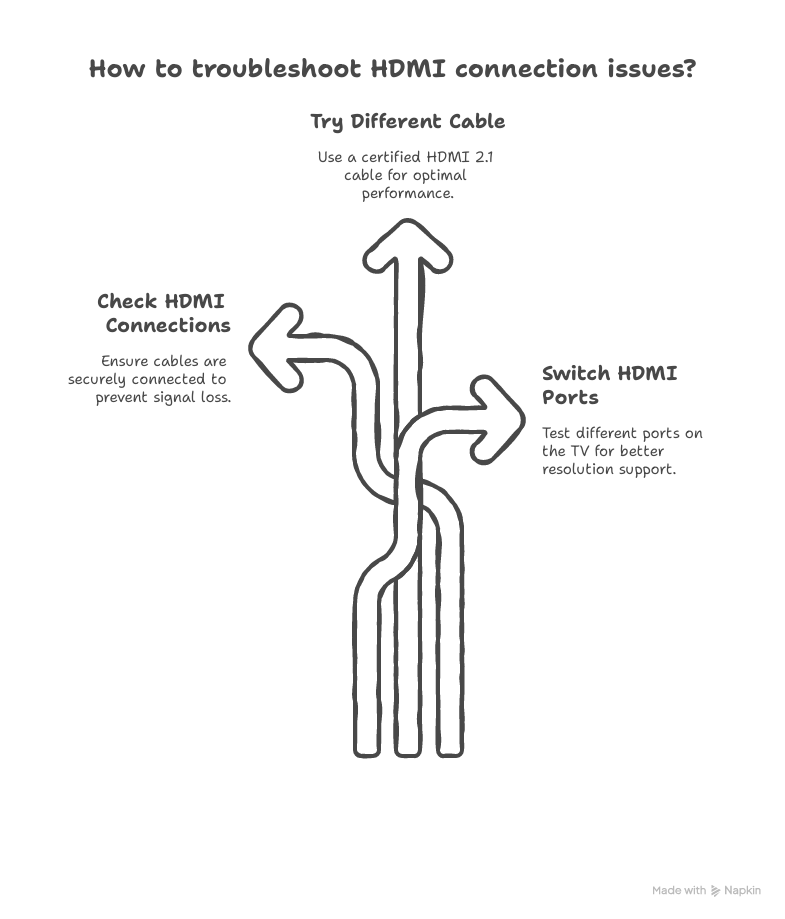
- Check HDMI Connections
Make sure the HDMI cable is tightly connected to both your Xbox and TV. Unplug and replug both ends to secure the connection.
- Try a Different HDMI Cable
Use a certified HDMI 2.1 cable. Older or low-quality cables often cause display glitches or lag.
- Switch HDMI Ports
Try other ports on your TV. Since some ports are designed for higher resolutions, they might work better with your Xbox.
Your Console or TV Settings Might Be the Issue
If your Xbox still won’t display properly, you should now try to adjust your settings.
- Hold the power button for 10 seconds to shut it off. Unplug for 30 seconds, then restart.
- Check whether your TV is set to the correct HDMI input.
- If you see flickering or no image, lower your resolution from 4K to 1080p.
- Go to Settings > General > TV & display options.
| Problem | Possible Cause | Instant Solutions |
| No signal on the screen | Loose cable | Reconnect both cable ends. |
| Intermittent display | Problem with the HDMI cable | Replace with HDMI 2.1 cable |
| HDMI port not working | Port damage | Test another port or opt for a professional repair service |
If your HDMI port or Xbox Series console is still having a problem and you’re unable to find out how to fix Xbox Series X HDMI issues, you should contact iGadget Repair for our professional repair services. Our technicians fix HDMI port issues and HDMI replacements with precision and care, restoring your console’s performance without risky DIY attempts.
What Can You Do Next?
- Go to Settings > System > Console info > Reset console so that you can do the factory reset on your Xbox.
- Visit your TV brand’s site for the latest firmware updates, as they often resolve HDMI problems.
- Connect your Xbox to a different TV or monitor to test if your original display is the issue.
FAQs
Why is my Xbox Series X showing no signal through HDMI?
Your HDMI cable might be faulty or loose. You can try to replug it, use a new cable, or check if the port is damage.
How do I reset display settings on my Xbox to fix the HDMI issue?
When you switch it on, hold power + eject until two beeps. It will lower the resolution and reset the display settings to 1080p.
Can my TV or monitor cause HDMI issues with my Xbox Series X?
Yes, the outdated TV firmware or incompatible HDMI ports on your display can break the signal even if the console works.
Conclusion
With these steps, you now know how to fix Xbox Series X HDMI issues and keep your console running smoothly. The good news is that you can easily fix some simple problems by checking cables, adjusting your TV’s settings, or updating firmware. And if your console needs expert care, our expert technicians at iGadget Repair are always ready to fix your Xbox quickly and professionally.

